> ## Documentation Index
> Fetch the complete documentation index at: https://vastai-80aa3a82-rate-limit-change.mintlify.site/llms.txt
> Use this file to discover all available pages before exploring further.
# TTS with Nari Labs Dia
Below is a step-by-step guide on how to configure and run Nari Labs Dia 1.6b model for text to speech. Our template will automatically setup an easy to access web based interface to help you get started.
## Find and rent your GPU
1. **Setup your Vast account and add credit:** Review the [quickstart guide](/documentation/get-started/quickstart) to get familar with the service if you do not have an account with credits loaded.
2. **Select the Dia TTS template:** click on [temp](https://cloud.vast.ai/templates/) and select the recomended TTS template [**Dia 1.6b TTS**](https://cloud.vast.ai/?ref_id=62897\&creator_id=62897\&name=Dia%201.6b%20TTS)**. **Click on the play icon to select the template. You will then go to the search menu to find a GPU.
* Click on the Readme link at any time for a detailed guide on how to use the template.
3. **VRAM Requirements**: Check that your **GPU VRAM** is sufficient for the model. You will need approximately 8Gb VRAM
## Steps to Open the TTS Interface
1. **After the instance loads, click the "Open" Button**
* This will initiate the Instance Portal with links to all the services running on the instance.
2. **Check the installation progress**
* The TTS application and model will be installed on first launch. From the Instance Portal you can view the progress by clicking the 'Instance Logs' tab.
3. **Launch the Application**
* When the installation is complete, You can click the "Dia TTS Interface" launch button to start the interface.
## Generate some audio
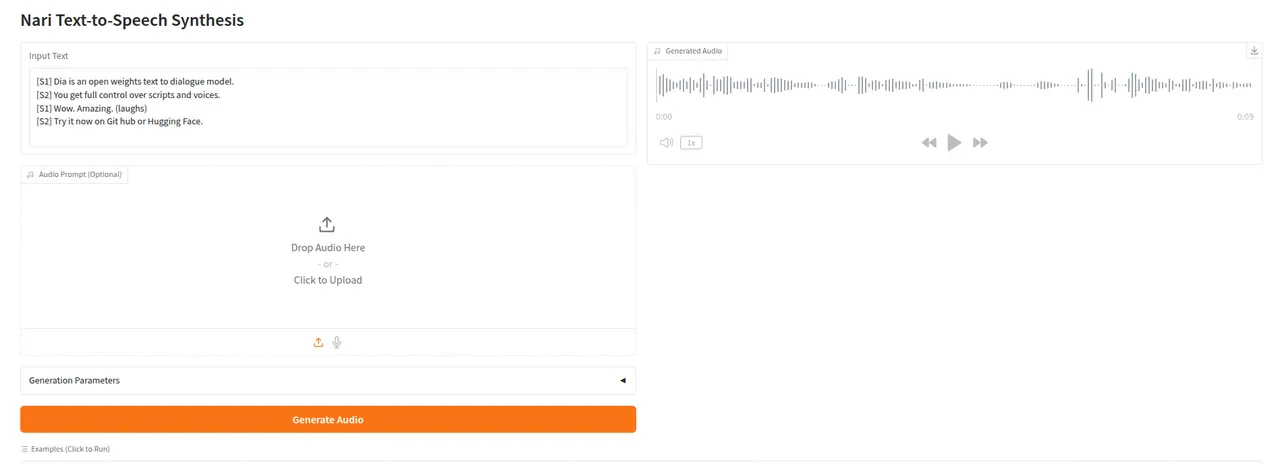
Once the interface has loaded, you can begin generating speech. Simply modify the input text, ensuring that each line is prefixed with the speaker ID and then click the 'Generate Audio' button.
It will take a few seconds to generate, but once it has finished you can click the play button in the upper right to hear the results.
 If you prefer to use the CLI, you can find all of the files you need in the `/workspace/dia` directory which you can access either via SSH or in a Jupyter terminal.
Full instructions for Nari Labs Dia can be found in their [GitHub Repository](https://github.com/nari-labs/dia).
If you prefer to use the CLI, you can find all of the files you need in the `/workspace/dia` directory which you can access either via SSH or in a Jupyter terminal.
Full instructions for Nari Labs Dia can be found in their [GitHub Repository](https://github.com/nari-labs/dia).