> ## Documentation Index
> Fetch the complete documentation index at: https://vastai-80aa3a82-rate-limit-change.mintlify.site/llms.txt
> Use this file to discover all available pages before exploring further.
# Oobabooga (LLM webui)
A large language model(LLM) learns to predict the next word in a sentence by analyzing the patterns and structures in the text it has been trained on. This enables it to generate human-like text based on the input it receives.
There are many popular Open Source LLMs: Falcon 40B, Guanaco 65B, LLaMA and Vicuna. Hugging Face maintains [a leaderboard](https://huggingface.co/spaces/HuggingFaceH4/open_llm_leaderboard) of the most popular Open Source models that they have available.
[Oobabooga](https://github.com/oobabooga/text-generation-webui) is a front end that uses Gradio to serve a simple web UI for interacting with the Open Source model. In this guide, we will show you how to run an LLM using Oobabooga on Vast.
## 1) Setup your Vast account
The first thing to do if you are new to Vast is to create an account and verify your email address. Then head to the Billing tab and add credits. Vast uses Stripe to processes credit card payments and also accepts major cryptocurrencies through Coinbase or Crypto.com. \$20 should be enough to start. You can setup auto-top ups so that your credit card is charged when your balance is low.
## 2) Pick the Oobabooga template
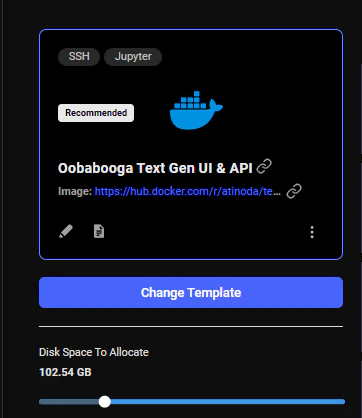
Go to the [Templates tab](https://cloud.vast.ai/templates/) and search for "Oobabooga" among recommended templates and select it.
## 3) Allocate storage
The default storage amount will not be enough for downloading an LLM. Use the slider under the Instance Configuration to allocate more storage. 100GB should be enough.
 ## 4) Pick a GPU offer
You will need to understand how much GPU RAM the LLM requires before you pick a GPU. For example, the [Falcon 40B Instruct](https://huggingface.co/tiiuae/falcon-40b-instruct) model requires 85-100 GB of GPU RAM. Falcon 7B only requires 16GB. Other models do not have great documentation on how much GPU RAM they require. If the instance doesn't have enough GPU RAM, there will be an error when trying to load the model. You can use multiple GPUs in a single instance and add their GPU RAM together.
For this guide, we will load the Falcon 40B Instruct model on a 2X A6000 instance, which has 96GB of GPU RAM in total.
## 4) Pick a GPU offer
You will need to understand how much GPU RAM the LLM requires before you pick a GPU. For example, the [Falcon 40B Instruct](https://huggingface.co/tiiuae/falcon-40b-instruct) model requires 85-100 GB of GPU RAM. Falcon 7B only requires 16GB. Other models do not have great documentation on how much GPU RAM they require. If the instance doesn't have enough GPU RAM, there will be an error when trying to load the model. You can use multiple GPUs in a single instance and add their GPU RAM together.
For this guide, we will load the Falcon 40B Instruct model on a 2X A6000 instance, which has 96GB of GPU RAM in total.
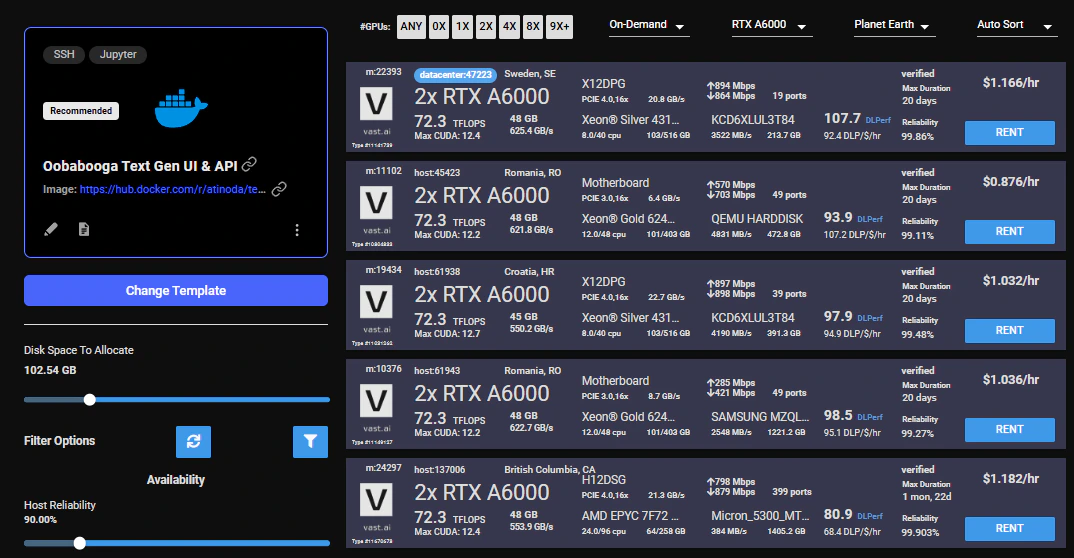 Click on the RENT button to start the instance which will download the docker container and boot up.
## 5) Open Oobabooga
Once the instance boots up, the Open button will open port 7860 in a new browser window. This is the Oobabooga web interface.
The web gui can take an additional 1-2 minutes to load. If the button is stuck on "Connecting" for more than 10 minutes, then something has gone wrong. You can check the log for an error and/or contact us on website chat support for 24/7 help.
## 6) Download the LLM
Click on the Model tab in the interface. Enter the Hugging Face username/model path, for instance: tiiuae/falcon-40b-instruct. To specify a branch, add it at the end after a ":" character like this: tiiuae/falcon-40b-instruct
The download will take 15-20 minutes depending on the machine's internet connection.
Click on the RENT button to start the instance which will download the docker container and boot up.
## 5) Open Oobabooga
Once the instance boots up, the Open button will open port 7860 in a new browser window. This is the Oobabooga web interface.
The web gui can take an additional 1-2 minutes to load. If the button is stuck on "Connecting" for more than 10 minutes, then something has gone wrong. You can check the log for an error and/or contact us on website chat support for 24/7 help.
## 6) Download the LLM
Click on the Model tab in the interface. Enter the Hugging Face username/model path, for instance: tiiuae/falcon-40b-instruct. To specify a branch, add it at the end after a ":" character like this: tiiuae/falcon-40b-instruct
The download will take 15-20 minutes depending on the machine's internet connection.
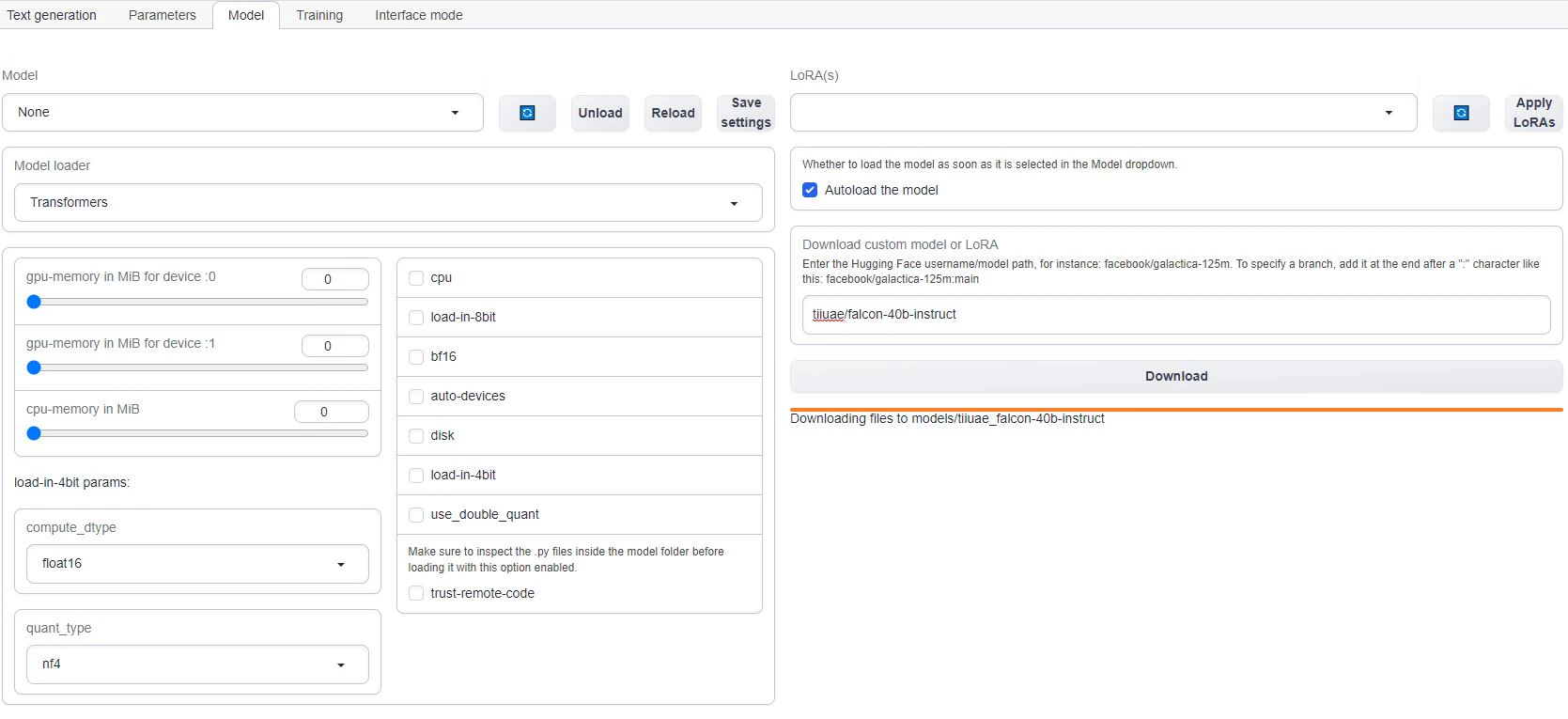 To check the progress of the download, you can click on the log button on the Vast instance card on [cloud.vast.ai/instances/](https://cloud.vast.ai/instances/) which will show you the download speed for each of the LLM file segments.
## 7) Load the LLM
If you are using multiple GPUs such as the 2X A6000 selected in this guide, you will need to move the memory slider all the way over for all the GPUs. You may also have to select the "trust-remote-code" option if you get that error. Once those items are fixed, you can reload the model.
To check the progress of the download, you can click on the log button on the Vast instance card on [cloud.vast.ai/instances/](https://cloud.vast.ai/instances/) which will show you the download speed for each of the LLM file segments.
## 7) Load the LLM
If you are using multiple GPUs such as the 2X A6000 selected in this guide, you will need to move the memory slider all the way over for all the GPUs. You may also have to select the "trust-remote-code" option if you get that error. Once those items are fixed, you can reload the model.
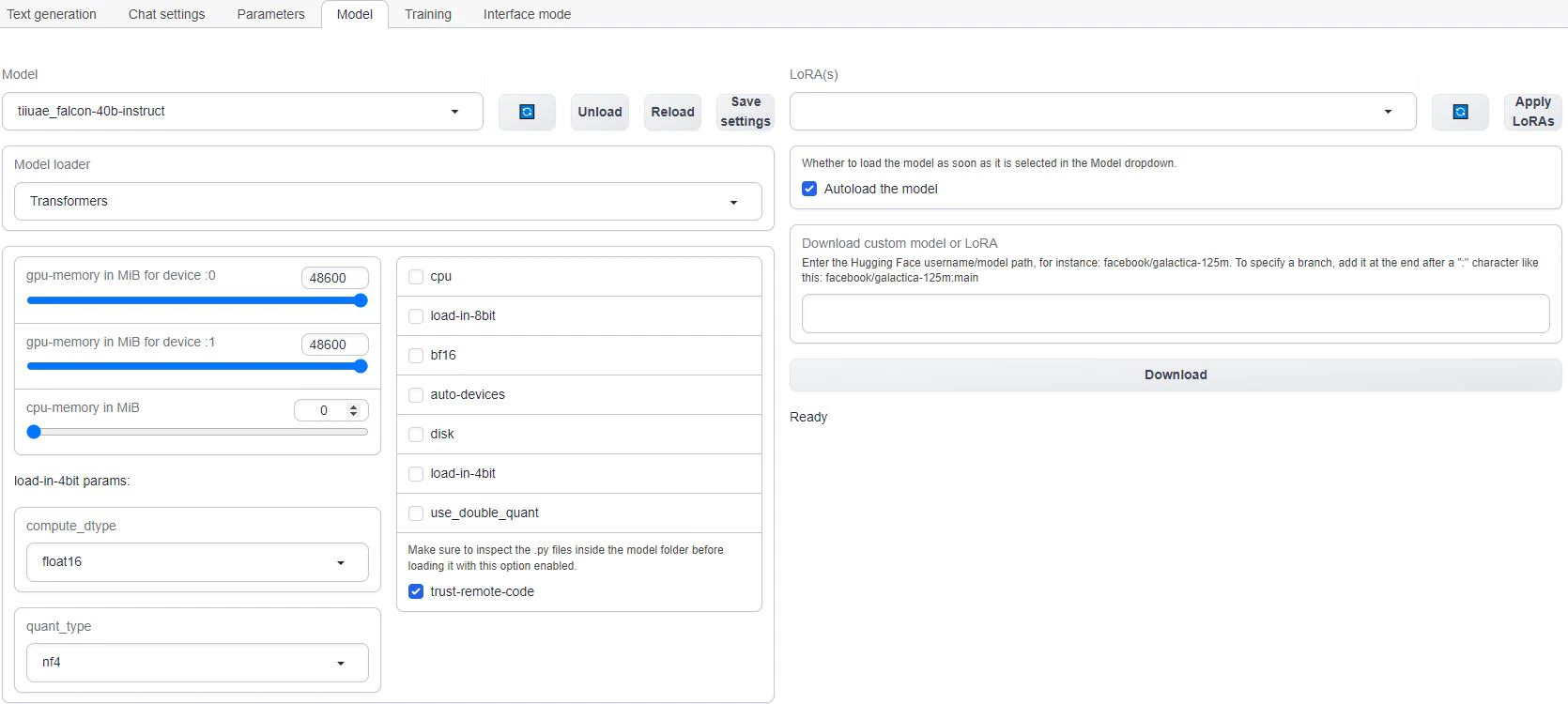 Any errrors loading the model will appear under the download button.
## 8) Start chatting!
Navigate to the Text generation tab to start chatting with the model. This is the most basic way to use Oobabooga, there are many other settings and things you can do with the interface.
## 9) Done? Destroy the instance
If you STOP the instance using the stop button, you will no longer pay the hourly GPU charges. **However you will still incur storage charges** because the data is still stored on the host machine. When you hit the START button to restart the instance, you are also not guaranteed that you can rent the GPU as someone else might have rented it while it was stopped.
To incur no other charges you have to DESTROY the instance using the trash can icon. **We recommend you destroy instances** so as not to incur storage charges while you are not using the system.
Have fun!
Any errrors loading the model will appear under the download button.
## 8) Start chatting!
Navigate to the Text generation tab to start chatting with the model. This is the most basic way to use Oobabooga, there are many other settings and things you can do with the interface.
## 9) Done? Destroy the instance
If you STOP the instance using the stop button, you will no longer pay the hourly GPU charges. **However you will still incur storage charges** because the data is still stored on the host machine. When you hit the START button to restart the instance, you are also not guaranteed that you can rent the GPU as someone else might have rented it while it was stopped.
To incur no other charges you have to DESTROY the instance using the trash can icon. **We recommend you destroy instances** so as not to incur storage charges while you are not using the system.
Have fun!