> ## Documentation Index
> Fetch the complete documentation index at: https://vastai-80aa3a82-rate-limit-change.mintlify.site/llms.txt
> Use this file to discover all available pages before exploring further.
# Finding & Renting Instances
> Find and rent GPU instances on Vast.ai. Learn how to search, filter, understand offer cards, and configure your instance.
The search page is the main portal for finding good machines and creating instances on them.
Before renting an instance, you'll need to select a template that defines your Docker image and connection method. If you haven't already, review [Choosing a Template](/documentation/instances/choosing/templates) to understand your options.
# Page Walkthrough
## Layout
You will find various search options on the top and left control bars that allow you to filter for various criteria (location, GPU type and count, various hardware specs, rental params, etc)
## Offer card
The offer card contains detailed information about the offer available for rent. Once rented, the offer then becomes a contract between you and the host. The offer card details the terms of the contract along with the specs of the available instance.
Most of the items on the offer card can be filtered using the search filters. Some of the important parts are the price and the maximum length of the rental (max duration). Hovering over the price details the different prices for GPU rental, storage and bandwidth.
### Machine Tiers
One important concept is the category of machine which is displayed on the offer card.
* Unverified: These are typically new machines that have not been tested by Vast's team and are filtered out of results by default
* Verified: These machines have passed our internal tests
* Datacenter: These machines are verified and confirmed to be in a certified datacenter that meets our datacenter criteria. Vast verifies that these machines are in a datacenter with a TIER 2/3 rating or ISO 27001. These offer cards have a blue label and are recommended for production
### Card Details

All stats shown are the portion of the total machine rented.
* Location and Host ID: The general region and ID of the host. Datacenter machines are labeled in blue.
* GPU Model: The GPU type and number
* Performance: The total TFLOPS of the GPU(s)
* GPU Memory: The GPU RAM per card and GPU memory bandwidth in GB/s
* Motherboard: The name of the motherboard manufacturer and type
* Motherboard details: PCIE version and number of lanes along with maximum theoretical PCIE bandwidth in GB/s
* CPU: The CPU type
* CPU Cores: the number of cores allocated for this offer divided total
* System RAM: system RAM allocated for this offer divided by the total
* Network Bandwidth: Given in Mbps for upload/download
* Network Ports: number of potential ports available
* Storage: The type of disk
* Disk speed: The speed of the local storage on the machine in MB/s
* Total available disk: The maximum amount of disk space available
* DLPERF score: A custom deep learning performance score
* Price: The GPU rental price plus the hourly cost of the storage allocated. Hover over the price for a breakdown and for the price of bandwidth.
* Max Duration: The duration of the contract
* Reliability: A score of how reliable the machine has been. All machines start at 60% reliability.
Rental Option: RENT Button
## Instance Disk Size
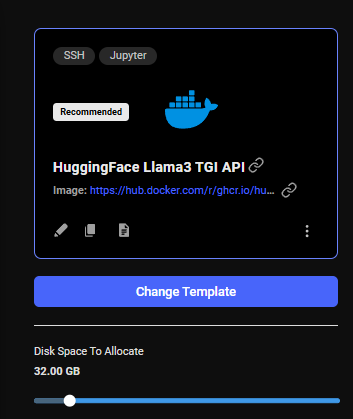
The storage slider is both a search filter and a parameter input which determines the storage allocation size - it's important to size this correctly before creating any instance.
When the instance is created, the disk size is set and cannot be modified. It is important to estimate how much disk you will need and then to move the slider to the desired disk size. The default disk size for an instance is 10GB. Use the slider to allocate more or less, taking into consideration that providers charge for disk allocation even when the instance is stopped.
## Instance Configuration
Vast.ai provides out Linux docker instances. One key step during setup is specifying what Linux docker image to load. You can also specify Docker run commands, an on-start script that executes bash commands on instance start and a launch mode to connect to the instance.
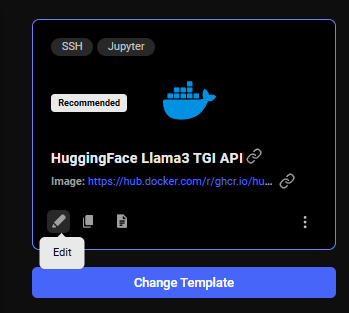
The instance configuration menu is accessible in the upper left of the create instance interface. The current template is always displayed in the upper left.
Click on the "Change Template" button to bring up the template config menu that allows selecting and editing templates. For a quick overview, see [Choosing a Template](/documentation/instances/choosing/templates). For detailed template creation and Docker configuration, see the main [Templates documentation](/documentation/templates/introduction)
## Common Questions
### I can't search for instances. I am getting the error "Error: invalid\_request 0 is not a valid search op"
Reset your filters. There is probably an invalid entry in your extra filters section on the template you are currently using.
### I can't find the machine type I am looking for?
Please search to see what is available, using our Search page or `vastai search offers`. Please keep in mind that we are only a marketplace. We do not manage or provide the hardware. If there is nothing available there is little we can do.
### When I try to rent an instance I get "Error: server\_error Something went wrong on the server"
Although this error can be due to a variety of things, we recommend checking to make sure you have a version tag on your Docker Image in your template. It should look like YOUR\_DOCKER\_IMAGE\_PATH for example "pytorch/pytorch". Selecting "latest" in the Version Tag dropdown menu in the template editor should fix this for you if you have a null tag or no tag selected.
### Why did I get "offer is no longer available"?
If you get this error when clicking the RENT button, the specific machine/GPU slot you requested is no longer available. In situations of low availability due to demand surges, many people are trying to rent the same offers at once, and only one can succeed.
### Instance is taking too long to start
Startup time depends on the template and is usually under 5 minutes. If waiting over 20 minutes:
* Ensure you're using a recommended template
* Try a different machine
* Note: You're not charged while instances are loading
* With slow internet and large images, downloads can take an hour or more